
Assignment: Website Accessibility
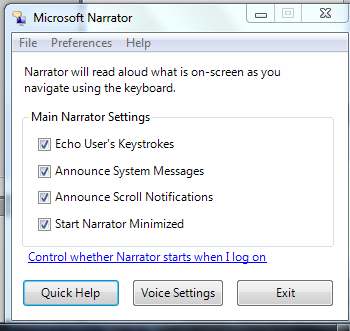
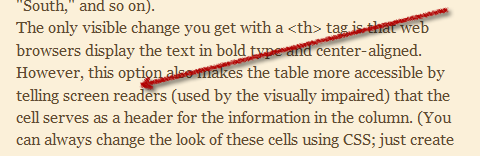 As the webmaster for the Office of Faculty Affairs, I should be completely up to speed about making information accessible to the visually impaired or to people with other kinds of disabilities. However, all I really know about accessibility is what's mentioned in my Dreamweaver book, and the dialog boxes that appear when I add a new image to a webpage. So, I looked forward to learning more about accessibility by trying out a screen reader for myself. Little did I know...first I tried the screen reader included with Windows, easily accessible from the control panel. Unfortunately, I could not convince Anna (the reader's name) to do any more than read her own menus to me. When I was on the university website, she was maddeningly silent. So then I thought I would try JAWS, mentioned in both the Chronicle article we read and in the video lecture.
  There is a free trial version of Jaws, so I downloaded that. The installation process is narrated, this time in a manly baritone voice, but once again,
  I couldn't get the reader to work properly. This time the issue was that the reader was giving me too much information: telling me the style tags for each element on the website, and telling me all the submenu items in each menu, whether I moused over that menu or not. I thought that a screen reader would work as I do -- if I moused over something, the reader would read it. But that, apparently, is not the case. Thank heavens for glasses! Time to start thinking about ways to make my site more accessible.
